iPhone / iPad
$2.99 one-time purchase on the App Store. The purchase is shared between the two devices; check the App Store page for system requirements. Verify the app identity, then get or restore it with your own purchase account.
Cross-platform rule-based proxy client with support for rule routing and multiple protocols. iPhone / iPad: $2.99 one-time purchase on the App Store; Mac, Windows, Android and Linux versions are free.
Current version 2.2.92 · iPhone / iPad: $2.99 one-time; Mac, Windows, Android and Linux: free
First-time setup: connection steps →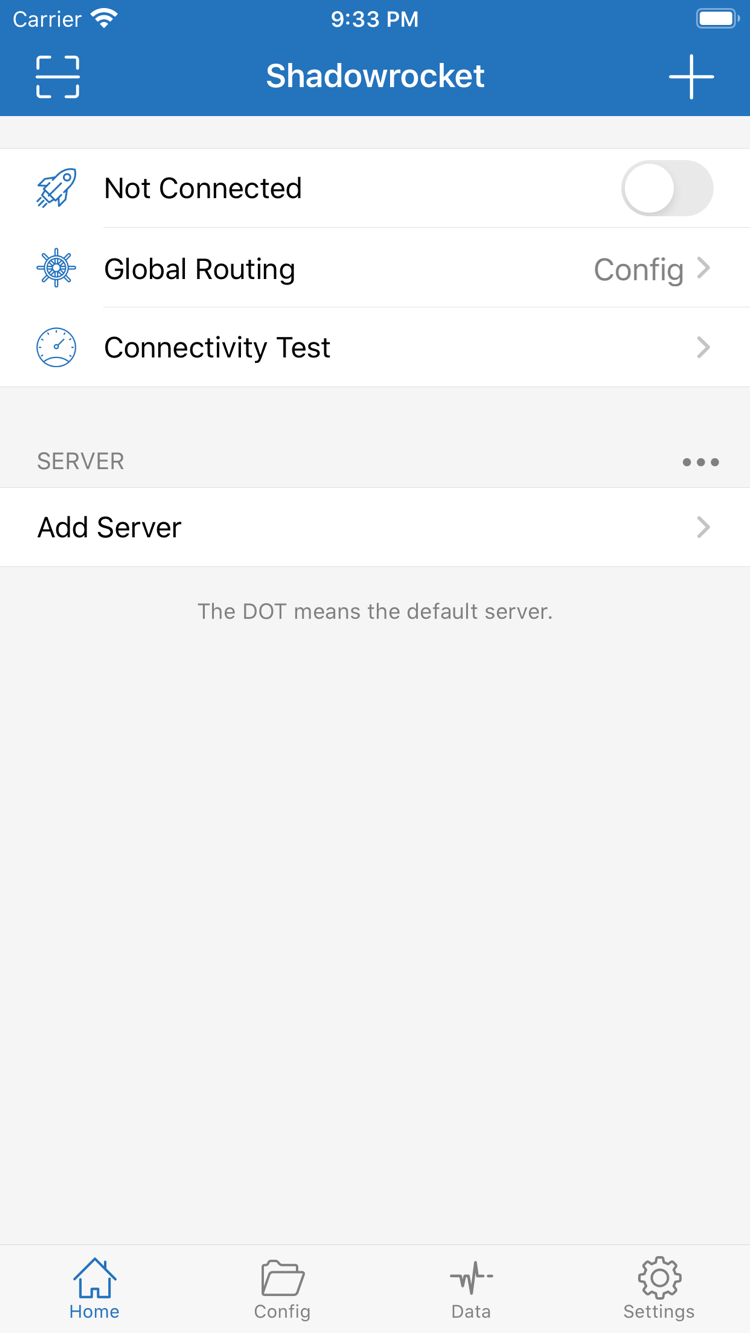
Settings / Usage boundaries
First, distinguish servers, subscriptions and configuration files, then adjust connection behavior. Interface labels are kept in English; menu locations may vary by device. See the relevant settings section for detailed steps.
View Global Routing on Home. Config routes traffic according to the current configuration's rules, Proxy sends matching traffic through the selected proxy, and Direct connects without a proxy. For everyday rule-based routing, select Config and confirm the active configuration file and server. Rules are matched from top to bottom; the first matching policy applies. Put specific domain conditions before broader ones, and keep FINAL at the end to handle unmatched requests. Changing modes changes the request path; it is not a substitute for checking server settings.
→ View setup instructionsDOMAIN-SUFFIX,example.com,PROXY
IP-CIDR,192.168.0.0/16,DIRECT
FINAL,PROXYOn Demand triggers connections based on network conditions. Configure it after verifying that a manual connection works. Check the On Demand conditions in Settings, confirm the expected behavior on Wi-Fi and cellular networks, then switch networks to test the trigger. It controls when to connect; it does not supply a subscription or repair an unavailable server. If the connection returns after turning off the main switch, also check the On Demand conditions and the system VPN settings rather than repeatedly toggling Home and overlooking the automatic trigger.
→ View setup instructionsSettings
On Demand
Wi-FiThe Type in Add Server must match the user's existing server configuration. Authentication fields differ across Shadowsocks, VMess, VLESS, Trojan and other types, so copying only Host and Port does not complete the setup. Check Password, Method, and the transport and TLS parameters required by the server. Preserve the original capitalization and paths. A protocol name does not indicate a fixed speed or power usage; first verify that the parameters match, then assess connection differences in light of the network and server capabilities.
→ View setup instructionsShadowsocksVMessVLESSTrojanHTTPSOCKS5WireGuardHysteria2To use an existing subscription link, paste the complete address in the relevant Subscribe section and save it, then refresh and confirm that the server list has populated. For a single server, use Add Server; before importing from a QR code or clipboard, check the content format. A subscription manages server entries; it is not the configuration file that determines routing. If an update fails, check whether the address was truncated, whether the network can reach it, and whether the response is still in a valid format. Repeatedly creating the same subscription is not a substitute for troubleshooting.
→ View setup instructionsSubscribe
Add Server
Scan QR Code
Import from Cloud JSONConfig manages routing rules and other configuration content. A file being downloaded and being active are two separate states. Before editing, keep a copy of the original, then check sections such as General and Rule, along with the policy names referenced by the rules. After saving, return to the list and confirm which file is selected; set Global Routing to Config to route traffic with that file. When using iCloud sync, check the files and selected status on each device separately. A synced file does not guarantee that a server is reachable and cannot replace a connection test on the device.
→ View setup instructions[General]
[Rule]
DOMAIN,api.example.com,PROXY
FINAL,DIRECTWhen a connection fails, use Connectivity Test to check server reachability, then use Diagnostics in Settings and actual request results to narrow down the issue. Data traffic statistics can help show whether data is being transferred, but an increasing value does not guarantee that a destination page is available. A successful latency test does not confirm that authentication, DNS and all rules are correct. Check the network, server parameters, system time and active rules in that order. Change one setting at a time and note the result to avoid losing track of the cause.
→ View setup instructionsConnectivity Test
Settings / Diagnostics
DataThe server determines the connection destination; rules determine the request path. Seeing a new server after refreshing a subscription does not mean that a domain rule has changed. Keep these layers separate when troubleshooting: first confirm that the selected server connects, then check the rule and policy matched by the request. See the protocol reference for field definitions or the usage guide for step-by-step instructions.
View protocol reference →Devices / How to get it
Two ways to get it: iPhone/iPad from the App Store for a $2.99 one-time purchase; Mac, Windows, Android and Linux versions are free. Desktop and Android installers are available from this site's download page under /dl/shadowrocket/.
$2.99 one-time purchase on the App Store. The purchase is shared between the two devices; check the App Store page for system requirements. Verify the app identity, then get or restore it with your own purchase account.
Free · Apple Silicon / Intel. Check the chip type in About This Mac, then choose the matching installer. Follow the download guide for any system prompts on first launch; do not infer the architecture from the device's appearance.
Free. A 64-bit installer is available. After downloading, confirm that the file came from this site before running it. If SmartScreen appears, check the source and follow the installation instructions to proceed.
Free · arm64. Get the installer from the download page. If Android asks you to allow unknown apps, grant only the necessary permission to the browser or file manager you are using, and revoke it afterwards if appropriate.
Free · deb / rpm / AppImage. Choose a package format that fits your distribution's package management. AppImage requires execute permission; install deb and rpm packages with the corresponding package manager to handle installation and dependencies.
iPhone/iPad: $2.99 one-time; other platforms are free. Before installing, read the system instructions: on Mac, confirm the app can be opened under Privacy & Security; on Windows, verify the source before selecting “More info → Run anyway”; on Android, check app installation permissions; on Linux, check the package format and execute permissions. See the download guide for specific prompts and steps.
App identity / Purchase / Service boundaries
Shadowrocket is a closed-source commercial application. When obtaining it, verify the app identity, device platform and download channel. In use, distinguish the client license from server details and routing configuration.
On iPhone/iPad, open the App Store product page and verify the name Shadowrocket, developer Shadow Launch Technology Limited, App ID 932747118 and official icon. Similar names in search results are not enough to identify the app; check the details on the product page. The App ID can be found in the product page URL. An entry with the same name but a different ID is not the app referenced here.
Get desktop and Android installers from this site's download page, under /dl/shadowrocket/. Do not mistake rule text, subscription links or screenshots in a guide for an installer. If the system displays a first-launch prompt, return to the download guide to confirm the source and platform, then follow the relevant system steps.
App Store availability depends on the store region for the current purchase account. If the app is not listed in the mainland China store, check the country or region set for your account and the availability shown on the store page. A missing search result does not by itself mean the device is unsupported. Change account region through the system's official account settings, after reviewing any restrictions related to balance, subscriptions and payment methods.
For iPhone/iPad, check the App Store page for system requirements. If the app is installed but cannot be updated, check system compatibility, the purchase account and store status separately. These are distinct from the server selected on Home; changing proxy settings generally cannot resolve purchase history or system compatibility issues.
App Store and account information →In the US App Store, the iPhone/iPad version is listed at $2.99 as a one-time purchase, shared between both devices. Other storefronts display local currency; refer to the checkout page. The Mac version (Apple Silicon and Intel), Windows, Android and Linux versions are free. The purchase is a license to use the client, not connection time or a data allowance for any server.
When replacing or reinstalling an iPhone/iPad, use the original purchase account to view purchased items and download the app again. Restoring a purchase record and restoring configuration data are separate tasks: after reinstalling, check that your servers, subscriptions and current configuration are all present. To reinstall on desktop or Android, return to this site's download page. Keep any configuration you need before updating, then check which one is selected after the update.
Device replacement and reinstall instructions →First connection / Three-step overview
The steps below use iPhone/iPad interface labels. Before starting, prepare your own subscription or server details and make sure the current network is working properly.
For a single server, choose Add Server on Home, select Type, then enter Host, Port and the corresponding authentication fields. For an existing subscription, use Subscribe to import the complete address, then save and refresh the list. Before scanning a QR code, confirm that it contains server details. Before pasting, check for extra spaces, line breaks or explanatory text.
A successful import means the corresponding server entry appears, not just a subscription name. Avoid importing multiple sets of the same source at once. Start with one identifiable entry so it is easier to check the current selection and refresh results.
To route traffic by rules, use Config and confirm the active file in the Config list. Proxy and Direct can help explain different paths or narrow down an issue; do not switch between them repeatedly without knowing the current mode. If a rule uses PROXY, also select a server with correct parameters and an available status.
If the same website behaves differently in different modes, the request path may have changed; that does not immediately indicate a protocol problem. Note the current mode, server and configuration file name before continuing with connection tests to avoid repeated steps.
When enabling the connection for the first time, follow the system prompt to allow the VPN configuration to be added, then return to Home and check the connection status. Run Connectivity Test first, then open the destination page you need. Seeing VPN status in the system does not confirm that the subscription, authentication and every rule are correct. Keep the same network environment during tests so a network change is not mistaken for a settings change.
If the connection still fails, check the basic network, subscription validity, protocol parameters and system time in that order. If only some destinations fail, check DNS and rule matching. Repeat the same test after each change to confirm that the result is reproducible.
Documentation / Browse by issue
For connection failures, start with basic checks; for file questions, see the section guide; for subscription issues, check the refresh instructions. Articles explain usage and behavior, not connection services.
Test latency to check reachability, verify protocol parameters and encryption fields, then check system time. Distinguish network failures, authentication issues and routing problems without changing multiple settings at once.
↗Understand global behavior, rule routing, local mappings and URL rewrites by section. Keep the original file before editing; afterwards, check syntax, rule order and the active file, and distinguish saving changes from applying the configuration.
↗Learn the difference between manual refresh and automatic refresh on app launch, then check for an expired link, network problems or format changes. After a successful refresh, confirm which server is actually in use instead of checking only the subscription name.
↗